

Most people plug in a new router and never open its settings again. A few simple changes can make your home Wi-Fi faster, more reliable and far more secure against unwanted access.
Secure the Router Itself
Start by changing the default admin password used to access router settings. Default credentials are often printed on the device or published online, and leaving them unchanged makes it easy for anyone on your network to alter settings.
Many routers are now managed through a smartphone app rather than a web page. Whichever method yours uses, protect the account with a strong password and enable two-factor authentication if it is available.
Update the router firmware right away and enable automatic updates if possible. Firmware updates fix security vulnerabilities and often improve performance, yet many routers run outdated software for years.
Disable remote management unless you specifically need it. This feature allows the router to be configured from outside your home network, which creates an unnecessary entry point for attackers.
Turn off WPS, a feature designed to connect devices with the push of a button or a short PIN. Older WPS implementations have known weaknesses, and modern devices connect easily without it.
Write down the new admin password and store it in your password manager. Many people change it once and then forget it, which forces a full factory reset the next time they need to adjust a setting.
Choose Strong Wi-Fi Security
Select the strongest encryption your devices support. WPA3 is the newest standard and offers better protection, while WPA2 remains widely used and acceptable if some older devices cannot connect with WPA3.
Many routers offer a mixed WPA2 and WPA3 mode. This setting allows newer devices to use stronger security while maintaining compatibility with older gadgets, making it a practical choice for most homes.
Never use outdated options such as WEP or an open network. These settings provide little or no protection and allow anyone nearby to connect to your network or observe traffic.
Create a strong Wi-Fi password, ideally a passphrase of several unrelated words. Long passphrases are easy to share with family members but very difficult for attackers to guess.
Choose a network name that does not reveal personal information. Avoid using your last name, address or apartment number, which can make it easier for others to identify your home network.
Change the Wi-Fi password if you suspect unwanted access or after someone who knew it moves out. Updating the password forces all devices to reconnect and removes anyone who should no longer have access.
Set Up a Guest Network
A guest network gives visitors internet access without letting them reach your personal devices. It keeps computers, phones and network storage separate from devices you do not control.
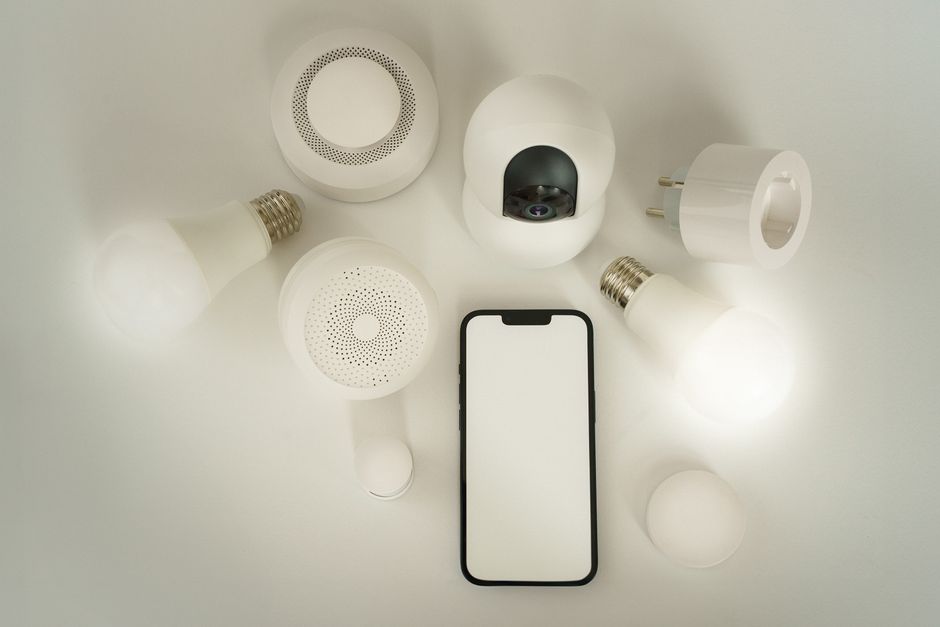
Guest networks are also ideal for smart home gadgets. Placing smart plugs, cameras, speakers and other connected devices on a separate network limits the damage if one of them is compromised.
Give the guest network its own password and change it periodically. Some routers let you share access with a QR code, which makes connecting easy for visitors without revealing the password itself.
Disable access to local network resources from the guest network. Most routers handle this automatically, but confirm the isolation setting is enabled so guests cannot see shared folders or printers.
Some routers allow scheduling guest network access or limiting bandwidth. These controls can be useful for short-term visitors, rental properties or ensuring guests do not slow down your own connection.
Improve Speed and Coverage
Place the router in a central, elevated location away from thick walls, metal furniture and appliances. Moving a router out of a closet or cabinet can improve coverage more than any setting change.
Modern routers broadcast on multiple frequency bands. The 2.4 GHz band reaches farther but is slower and more crowded, while 5 GHz and 6 GHz bands are faster but have shorter range, especially through walls.
Band steering combines bands under one network name and moves devices to the best option automatically. If some devices struggle to connect, separating the bands into different network names can help troubleshoot.
Wi-Fi channels can become congested in apartment buildings where many networks overlap. Most routers choose channels automatically, but manually selecting a less crowded channel can sometimes improve performance.
Quality of service settings let you prioritize certain traffic, such as video calls or gaming. If your household often experiences slowdowns during busy evenings, prioritizing important activities can make a noticeable difference.
Connect stationary devices with Ethernet cables when possible. Desktop computers, game consoles and streaming boxes perform more consistently with a wired connection, which also frees up Wi-Fi capacity for phones and laptops.
Ongoing Maintenance
Restart your router occasionally, especially if you notice slowdowns or connection drops. Many routers allow scheduled restarts, which can help keep performance consistent over time.
Review the list of connected devices every few months. Unfamiliar devices could indicate that someone has your password, and most router apps let you block unknown devices quickly.
Run speed tests at different times of day and in different rooms. Comparing results helps you determine whether problems come from your internet plan, Wi-Fi coverage or congestion at certain times.
Consider replacing routers older than five or six years. Newer models support faster Wi-Fi standards, stronger security and receive ongoing updates, which older equipment may no longer get.
A well-configured router is the foundation of a fast and secure home network. Spending a little time on these settings protects your devices and ensures every room enjoys reliable internet.