

Storage choice affects how fast your computer feels every single day. Here is how solid-state drives and hard disk drives compare, and how to choose the right one for your needs and budget.
How Each Type of Drive Works
Hard disk drives, or HDDs, store data on spinning magnetic platters. A small arm moves across the platters to read and write information, a mechanical process that has been refined for decades but remains limited by physical movement.
Solid-state drives, or SSDs, store data on flash memory chips with no moving parts. Because there is nothing to spin up or move into position, they can access data almost instantly, regardless of where it is stored on the drive.
This fundamental difference explains most of the trade-offs between them. SSDs excel at speed, durability and efficiency, while HDDs offer large capacities at a much lower cost per gigabyte.
Both types connect to computers in different ways. Many SSDs use the NVMe interface through an M.2 slot for maximum speed, while 2.5-inch SATA SSDs and traditional hard drives connect through older, slower SATA connections.
Understanding these basics helps you read product listings and choose the right drive for upgrades. Many modern laptops include only M.2 slots, while desktops often support several types of drives at once.
Speed and Everyday Performance
Speed is the biggest reason to choose an SSD. Computers with SSDs boot in seconds, open apps quickly and feel more responsive in everyday tasks, from searching files to switching between programs.
Even an inexpensive SATA SSD dramatically outperforms a traditional hard drive in real-world use. The improvement is most noticeable in random access, the small scattered reads that operating systems perform constantly.
NVMe SSDs are faster still, with sequential speeds several times higher than SATA SSDs. This difference matters most when copying very large files, editing high-resolution video or loading large game levels.
For general browsing, office work and streaming, the difference between SATA and NVMe SSDs is often hard to notice. Both feel dramatically faster than a hard drive, which is the upgrade that matters most.
Games increasingly benefit from SSD storage. Many modern titles load faster and stream detailed environments more smoothly from an SSD, and some games now list solid-state storage as a requirement.
If your current computer uses a hard drive as its main drive, replacing it with an SSD is often the single most effective upgrade available. It can make an older machine feel years newer for a modest cost.
Capacity and Cost
Hard drives remain the champion of inexpensive bulk storage. They offer far more capacity for the money, which makes them ideal for storing large media libraries, backups and archives that do not need fast access.
SSD prices have fallen considerably over the years, making 1 terabyte drives affordable for most budgets. Larger SSDs are available but still cost significantly more than hard drives of the same capacity.
For most laptops and everyday desktops, an SSD of 512 gigabytes to 1 terabyte is a comfortable starting point. Users with large game libraries, photo collections or video projects may want 2 terabytes or more.
Many desktop users combine both types. A fast SSD holds the operating system, applications and active projects, while a large hard drive stores photos, videos and backups at a much lower cost.
Consider cloud storage as part of the equation. If many of your files live in the cloud, you may need less local storage, though large media files and games still take up significant space on the drive itself.
Durability, Noise and Power Use
Without moving parts, SSDs are more resistant to drops and bumps. This makes them especially well suited to laptops and portable drives that are carried around and occasionally knocked.
Hard drives are more vulnerable to physical shock, particularly while running. A drop during operation can damage the platters or read head, potentially causing data loss, which is one reason laptops moved to SSDs.
SSDs have a limited number of write cycles, but modern drives are rated for far more data than typical users will ever write. For everyday use, most SSDs will remain functional well beyond the useful life of the computer.
SSDs are silent and use less power than hard drives. This improves laptop battery life and keeps computers quieter, while hard drives produce audible clicks and spinning sounds during operation.
Heat can affect fast NVMe drives during heavy, sustained use. Many desktops and some laptops include heat sinks for M.2 drives, which help maintain peak speeds during long file transfers or gaming sessions.
No drive lasts forever, regardless of type. Regular backups remain essential, since both SSDs and HDDs can fail without warning, and a backup is the only reliable protection for important files.
Choosing the Right Drive
For your main system drive, choose an SSD. The improvement in speed and responsiveness is significant for nearly every user, and the cost difference is easily justified by daily convenience.
Check what your computer supports before buying an upgrade. Look up whether your laptop or desktop has an M.2 slot, which NVMe generation it supports and whether there is space for a 2.5-inch drive.
For bulk storage and backups, a hard drive offers the best value per gigabyte. External hard drives are an affordable way to back up computers and store media that you do not access every day.
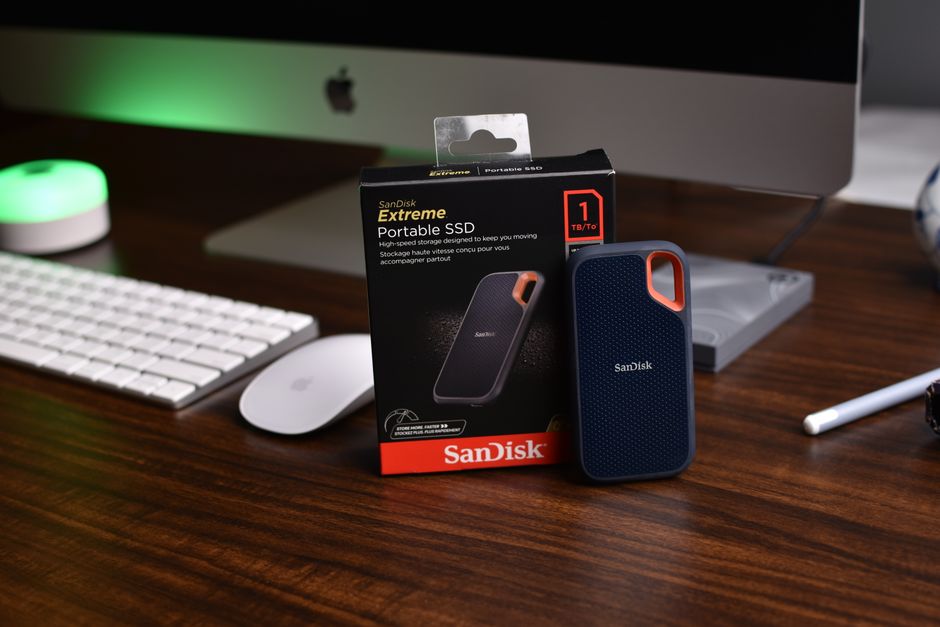
Portable SSDs are excellent for people who frequently move large files between computers. They are small, fast and durable, making them popular with photographers, video editors and students.
The best setup often combines both technologies. Using an SSD for speed and a hard drive or cloud service for capacity gives you a fast computer and plenty of room for everything you want to keep.